 anotemy
Sign in
Try it free
anotemy
Sign in
Try it free
Turn lecture slides into notes with anotemy
anotemy (disclosure: we make it) turns a lecture PDF into notes with active recall. Import the slides, keep one open in the rail, rewrite it in your own words as short headings and sentences, and tap any anatomy term to open it in 3D.
Don't copy the slides
Copying slides out is transcription, not note-taking. Your lecture slides are a visual aid the professor used, but your notes need to capture the explanation, connections and active recall cues you will rely on later. Notes add what slides don't: your own phrasing, questions you can ask yourself, and links between anatomy terms.
Rewriting a slide as sentences forces you to process the material instead of just recognizing it. For example, instead of a bullet that says 'hippocampus: memory,' you might type 'The hippocampus sits in the temporal lobe and is the first stop for forming new memories.' That sentence becomes something you can quiz yourself on later with active recall.
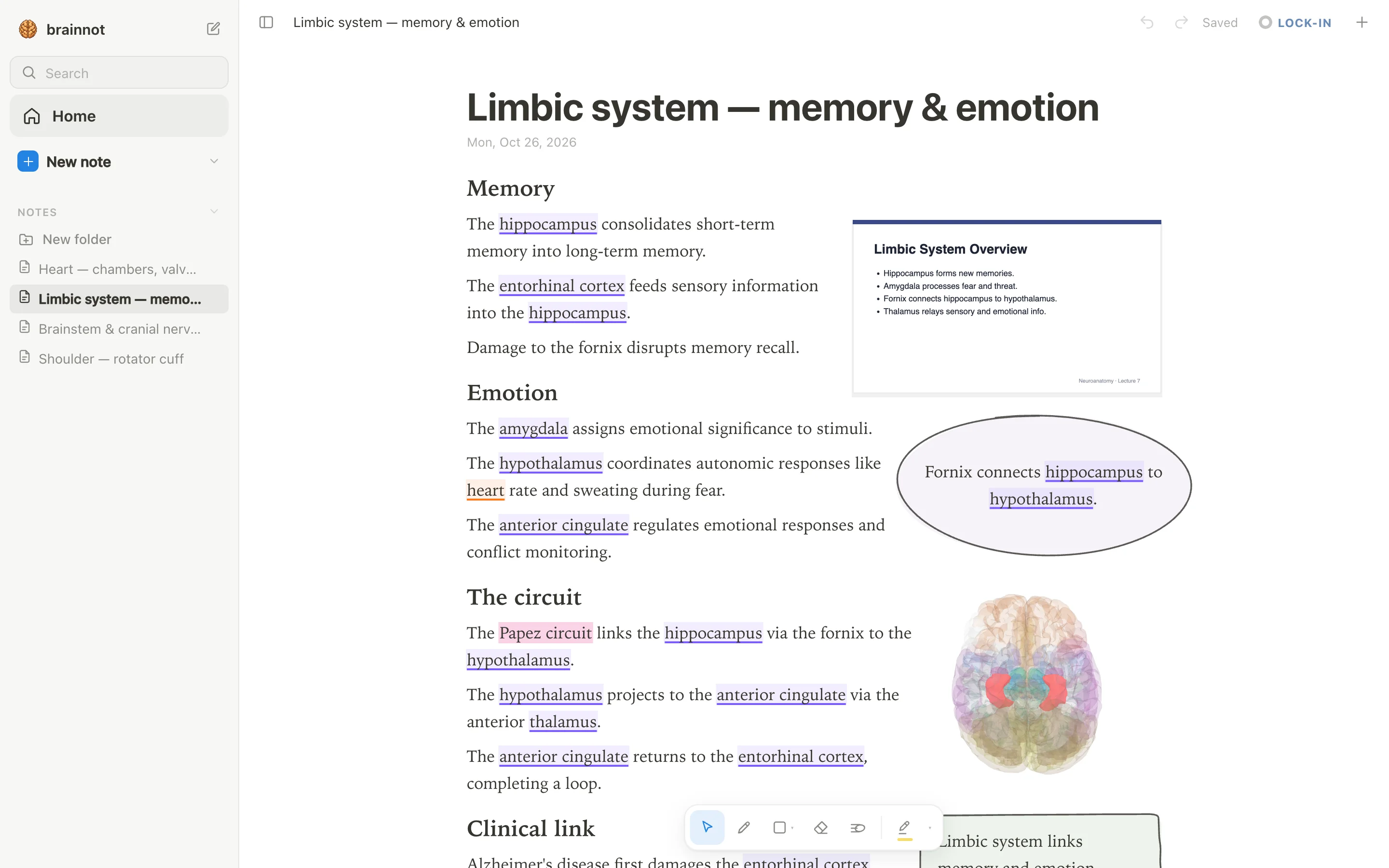
anotemy is built exactly for this kind of note. You type a structure's name and the word itself lights up in the text; tap it and the structure turns in 3D right above the word. That live link turns a static slide into a study tool, and because anotemy runs in any modern browser or on an iPad with Apple Pencil, you can do it on the device you already use; other apps like Goodnotes or Notability are strong for handwriting-first workflows, but anotemy keeps the anatomy in your words.
Step 1: Bring the PDF in
Open anotemy in a modern browser on a laptop, desktop, or iPad. You can start writing without an account; sign in with Google or Apple to keep notes and sync them to every device. The app is free while in beta, and it accepts lecture slides as a PDF, which means a PowerPoint deck needs to be saved as a PDF for now.
Drag your lecture PDF into anotemy and the slides wait in a rail beside the page instead of covering your notes. The rail keeps every slide accessible, but you don't paste all of them into the note; you bring over only the one you are working on. This keeps the page focused and stops it from becoming a second copy of the deck.
Once imported, the slides can go anywhere in the note, and the text reflows around them. That means you can place a slide next to your typed explanation and keep writing without manually fixing the layout. Because the slides stay in the rail, you can switch to a different slide later without losing your place.
Step 2: Put one slide next to your words
Open the lecture PDF in the rail and scroll to the slide you are studying right now. Drag that one slide from the rail onto the note page, and anotemy places it where you drop it while making room by reflowing your text. You do not need to screenshot the slide or resize it; the app handles the layout.
Only bring over the slide that matters for the section you are writing. If you are taking notes on the limbic system, dock the slide that shows the hippocampus, amygdala and Papez circuit, and leave the rest in the rail. This way your note stays about your understanding, not about reproducing every slide.
With the slide beside your words, you can glance at the diagram while typing your own explanation. The slide remains visible as a reference, but it never becomes the main content of the note. That separation is what turns lecture slides into notes you will actually revise from.
Step 3: Write the slide in your own words
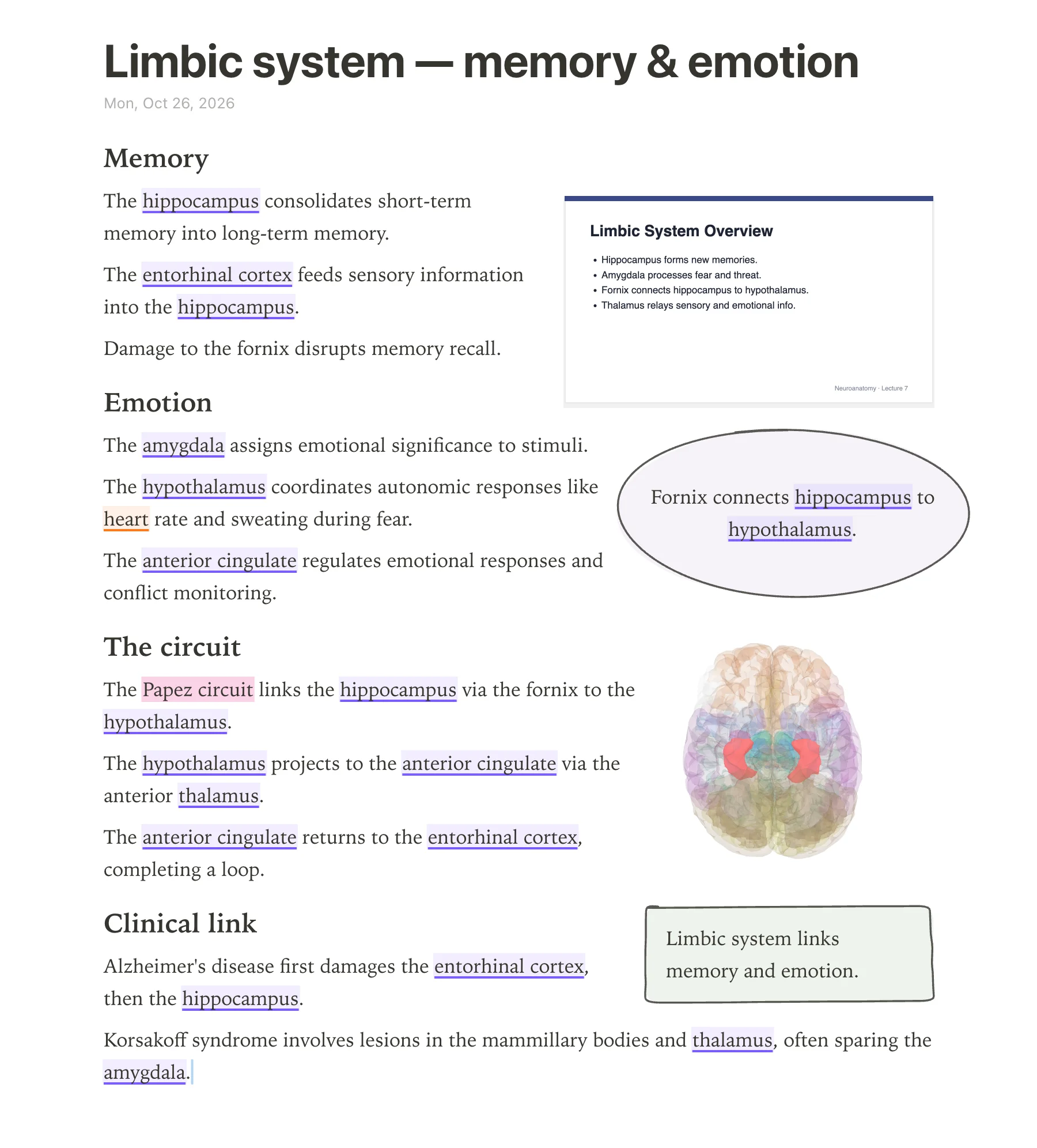
Read the slide, look away, and write what you remember as short headings and sentences. Turn 'hippocampus: consolidation' into 'The hippocampus consolidates short-term memories into long-term storage,' and use example terms like hippocampus, amygdala, hypothalamus, thalamus, brainstem, cerebellum, basal ganglia, corpus callosum, and spinal cord as you go. Every time you type one of these, anotemy underlines it in violet, so your note shows exactly where the anatomy lives.
Tap a highlighted word and a 3D model of that structure appears right above the text, inside a see-through brain. You can rotate the model, zoom it, and then drop that 3D view into your note as a picture cut to the model's edges, with the text flowing around it. That makes the model part of your active recall prompt instead of a separate diagram you have to open.
Add drawings with a pen, mouse, or Apple Pencil. Loop a takeaway and it becomes a box; use highlighter colors yellow, green, blue, and pink to mark connections like the Papez circuit. A green takeaway box at the bottom can hold a question such as 'What circuit connects the hippocampus to the mammillary bodies?' and the quiz feature gives quick questions about a structure with one tap.
Step 4: Box takeaways and quiz tables
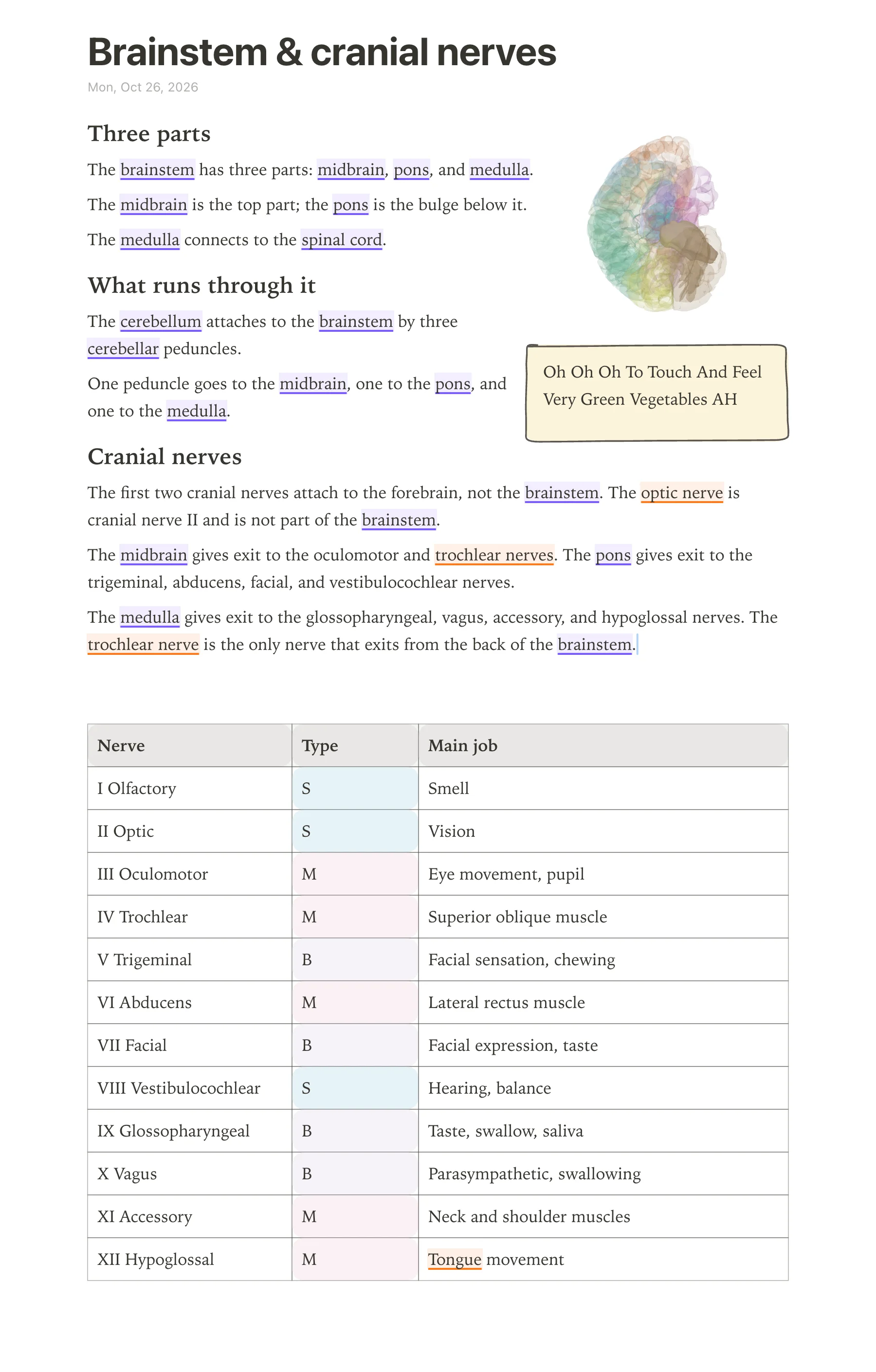
After you have rewritten a slide in your own words, box the one takeaway you must remember. In anotemy, loop it with the pen or Apple Pencil and it becomes a box; the text makes room for whatever you draw. These boxes mark exactly what to revise, so you do not reread the whole page.
Turn any list of structures into a hand-drawn table. A table with columns like structure, type, and main job is quick to quiz from: cover one column and say the answer out loud. anotemy adds one-tap quiz questions for any structure, so the same note becomes a self-test without extra work.
Slides in different apps
Different apps handle slide PDFs and note layout differently. The table below compares anotemy, Goodnotes, Notability, and OneNote on the three things that matter for turning slides into revision notes.
| app | PDF slides | write beside the slide | text moves around the slide |
|---|---|---|---|
| anotemy | Drop slides in as PDF (save PowerPoint as PDF); they sit in a rail and can go anywhere in the note. | Type structure names to light them up; tap to open 3D, then drop the 3D view beside the slide; draw with pen, mouse, or Apple Pencil. | Text reflows around slides, 3D views, and hand-drawn boxes. |
| Goodnotes | Imports PDF everywhere; Word/PowerPoint only on iOS/iPadOS (converted to PDF, layout may shift); macOS needs PDF conversion first. | Handwriting-first with Apple Pencil; handwriting-to-text on iPad, iPhone, Mac, Android, Web but not Windows. | Text boxes and handwriting stay where you place them; no automatic reflow. |
| Notability | Imports PDFs and presentations; help center suggests converting Word/PowerPoint to PDF first. | Mix handwriting and typing on the same page; Apple Pencil and Android stylus; handwriting recognition. | No automatic reflow; you place handwriting and text boxes manually. |
| OneNote | Inserts PDFs as File Printout images you can ink over; printout text isn't editable. | Strong typed text with movable containers; handwriting on Windows, iPad, Android; ink-to-text on Windows only. | Free-form canvas with movable text containers; no automatic reflow. |
Prices and features checked on 26 October 2026 on each one's own site: Goodnotes · Notability · Microsoft OneNote.